
Guide / Start here
Getting started
A tour of the Purpgo app and the order to set things up in, from your first mailbox to your first campaign.
Where to find it
Sign in at app.purpgo.com. Everything lives in the left sidebar, grouped into Email, CRM and Resources.
Why it matters
Cold email works when the groundwork is right. Following the setup order below means your first send goes out from a healthy, authenticated mailbox to a clean list.
Find your way around
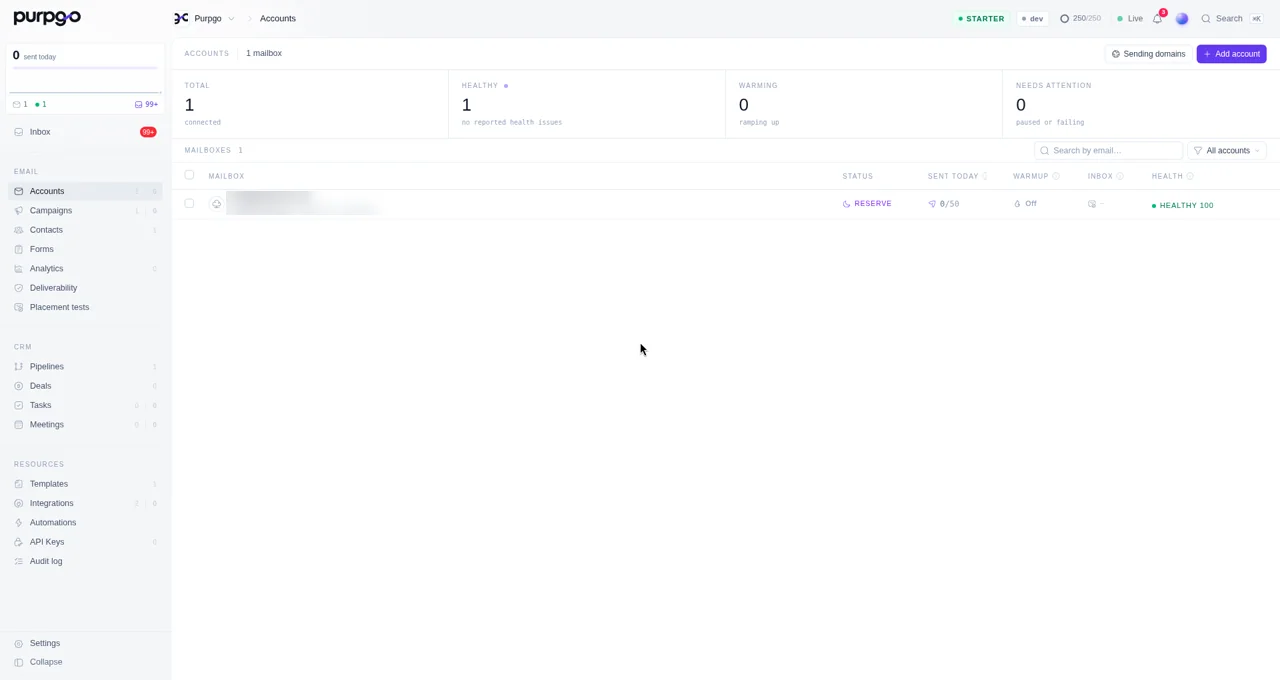
The sidebar is the map of the product. At the top, a counter shows how much you have sent today and how many mailboxes are connected, with a shortcut to the Inbox.
Email holds Accounts, Campaigns, Contacts, Forms, Analytics, Deliverability and Placement tests. CRM holds Pipelines, Deals, Tasks and Meetings. Resources holds Templates, Integrations, Automations, API keys and the Audit log. Settings sits at the bottom.
The top bar shows your workspace, your plan, your daily send allowance and a Search box you can open from the keyboard.
Set up in this order
Each step builds on the one before it. You can come back to any of them later.
- 1Connect a mailbox in Accounts and let warmup build its reputation.
- 2Check its domain in Sending domains: authentication, tracking host and redirect.
- 3Import or add contacts, then group them with labels and segments.
- 4Save a template or two for your opening email and follow-ups.
- 5Create a campaign: pick leads, write the emails, set the schedule, review and launch.
- 6Work replies from the Unibox and move interested people into a CRM pipeline.
- 7Watch Analytics and Deliverability to keep sending healthy.
Make the workspace yours
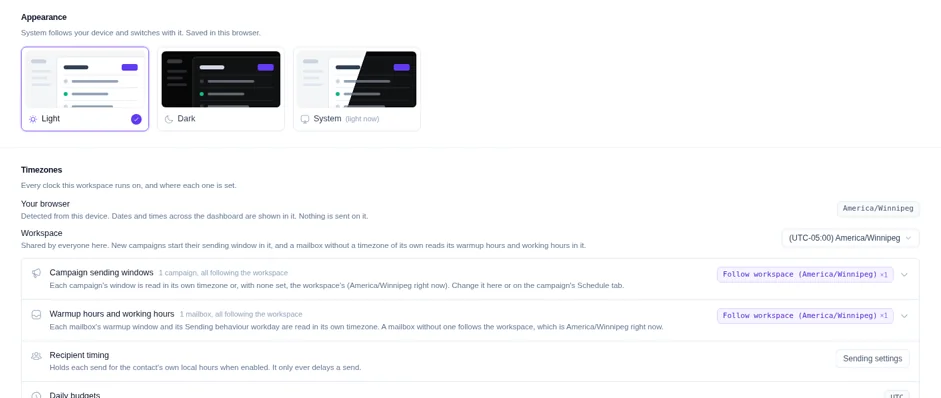
Open Settings, then Profile, to set the name that appears on outgoing email, choose a light, dark or system appearance, and confirm your timezones.
The workspace timezone matters: new campaigns start their sending window in it, and a mailbox without its own timezone reads its warmup and working hours from it. Daily budgets reset at midnight UTC.
Ready to try it? Open app.purpgo.com →